

On this page
01Why your iPhone isn't charging wirelessly
When an iPhone is not charging wirelessly, the cause is almost always something between the phone and the pad, a phone that's off-center, or a battery that's too warm. Faulty chargers and broken phones are much further down the list.
Wireless charging works by passing a magnetic field from a coil in the pad to a coil behind your iPhone's back glass. Those coils need to be close and lined up. Anything that adds distance (a thick case), blocks the field (metal), or nudges the phone sideways cuts the power or stops it completely. Match what you're seeing to the table, then jump to the steps below.
| What you see | Likely cause | Try this first |
|---|---|---|
| No charging bolt at all | Phone off-center, or case too thick or has metal in it | Case off, re-center the phone |
| Starts charging, then stops | Heat, or the phone buzzed itself off the pad | Cool it down, turn on Silent or a Focus |
| Stops at 80% | Battery is warm, or a Charge Limit is set | Let it cool; check Settings > Battery > Charging |
| "Charging On Hold" alert | Phone is outside its normal temperature range | Move it somewhere cooler and lock the screen |
| Charges, but very slowly | Weak power adapter, or a basic Qi pad (7.5W max) | Use a 20W+ USB-C adapter |
| Nothing while a cable is connected | iPhone ignores the pad when it's plugged in by USB | Unplug the cable |
02Fix it step by step
Go in this order. Each step takes under a minute, and the early ones fix most cases.
-
Take the case off
Apple's own advice is to try without the case if it's thick, metal, or a battery case. If the phone charges bare, you've found it. Also remove MagSafe-style wallets, ring stickers, glued-on grips and anything slid into a card pocket.
-
Center it and reseat it
Put the iPhone screen-up in the middle of the pad. With Apple's MagSafe Charger, if you set the phone down before the charger had power, lift it off, wait three seconds and put it back so it can negotiate full speed.
-
Unplug the cable
An iPhone won't charge wirelessly while it's connected to USB. That includes a Lightning or USB-C cable plugged into a laptop for syncing or CarPlay.
-
Check the power adapter
A pad is only as strong as the brick behind it. Apple says its MagSafe Charger needs a 20W or higher USB-C adapter for 15W, and 30W or higher for 25W on newer models. An old 5W cube will make most pads crawl or cut out.
-
Let it cool down
If the phone feels warm, take it off the pad, out of the sun and out of the case for 10 to 15 minutes. iOS pauses or slows charging when the battery is too hot and resumes once it cools.
-
Stop the buzzing
Notifications can vibrate a phone off a flat pad overnight. Turn on Silent mode or a Focus like Do Not Disturb, or use a magnetic charger or a stand that holds the phone in place.
-
Restart and update
On Face ID models, hold the side button and either volume button, slide to power off, then turn it back on. Then check Settings > General > Software Update. iOS updates have changed wireless charging before, adding faster Qi2 support to older iPhones.
-
Swap one thing at a time
Try your charger with another Qi phone, and your iPhone on another pad. If your phone fails on every pad but charges fine by cable, it's the phone. If the pad fails with every phone, it's the pad or its adapter.
The charging coil sits right under the rear glass. If the back is cracked, switch to a cable until it's repaired rather than pressing broken glass onto a pad every night.
03Is your case the problem?
Most normal cases are fine. Wireless charging is designed to pass through a few millimeters of plastic, silicone or leather. The trouble starts with three kinds of case:
- Very thick rugged cases. The extra distance weakens the field. They may charge on a pad but fail on a magnetic charger, or charge slowly and get warm.
- Anything with metal in it. Metal kickstands, mount plates for car holders, aluminum backs and ring holders block the field and can heat up on the pad.
- Wallet cases and card pockets. Cards add thickness, and Apple warns not to put credit cards, badges, passports or key fobs between your iPhone and a MagSafe Charger because they can be damaged.
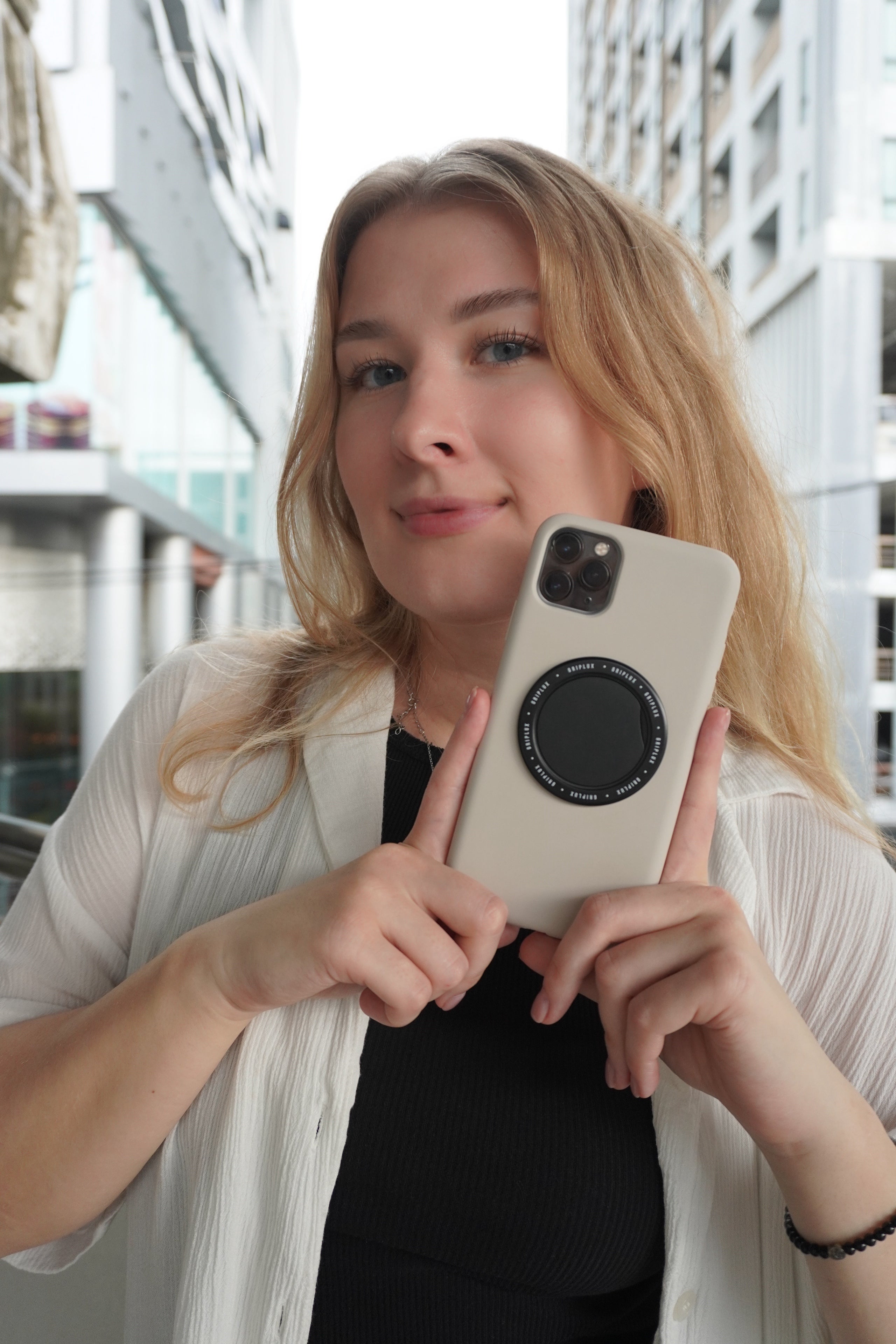
A MagSafe-compatible case with a built-in magnet ring does the opposite. It keeps a magnetic charger locked onto the coil, which is the single best fix for a phone that keeps sliding off-center. For more detail, see does wireless charging work through a case.
Slim cases with magnets built in, so magnetic chargers line up on their own.


04Qi, Qi2 and MagSafe: what speed should you expect?
Sometimes the phone is charging, just slowly enough that it looks broken. Every iPhone from the 8 onward tops out at 7.5W on a basic Qi pad. Faster wireless charging needs a magnetic Qi2 charger or Apple's MagSafe Charger, and a phone with magnets built in.
| iPhone | Magnets? | Max with Apple's MagSafe Charger | Adapter for full speed |
|---|---|---|---|
| iPhone 8 to 11 | No | No MagSafe. 7.5W on Qi pads | Whatever the pad recommends |
| iPhone 12 to 15 | Yes | Up to 15W | 20W USB-C or higher |
| iPhone 16e | No | No MagSafe. 7.5W on Qi pads | Whatever the pad recommends |
| iPhone 16, 16 Pro | Yes | Up to 22.5W peak | 30W USB-C or higher |
| iPhone 16 Plus, 16 Pro Max | Yes | Up to 25W | 30W USB-C or higher |
| iPhone 17, 17 Pro, 17 Pro Max | Yes | Up to 25W | 30W USB-C or higher |
| iPhone Air | Yes | Up to 20W peak | 30W USB-C or higher |
| iPhone 17e | Yes | Up to 15W | 20W USB-C or higher |
| iPhone 18 Pro, 18 Pro Max | Yes | Up to 25W | 30W USB-C or higher |
Two things trip people up. First, the iPhone 16e has no magnets, so magnetic chargers won't hold it and it charges at basic Qi speed. Second, a charger labeled "15W" that isn't Qi2 certified or Apple's own usually charges an iPhone at 7.5W. That's fine overnight, just don't expect a quick top-up. Our Qi2 vs MagSafe explainer covers the difference, and which iPhones have MagSafe lists every model.
05Charges, then stops: heat and the 80% pause
Wireless charging makes more heat than a cable, and a warm battery is the most common reason charging stalls. Apple says that if the battery gets too warm, software might limit charging above 80 percent and pick up again once the temperature drops. On iOS 16 and later you may also see a Charging On Hold alert, which means charging resumes when the phone returns to normal temperature. Our Charging On Hold guide goes deeper.
Quick ways to keep it cool: charge on a hard surface rather than a bed or couch, keep it out of direct sun and hot cars, take off a thick case, and don't game or stream while it's on the pad.
That's probably a setting, not heat. On iPhone 15 and later, open Settings > Battery > Charging and check the Charge Limit (it can be set from 80% to 100%). On iPhone 14 and earlier, look under Settings > Battery > Battery Health & Charging for Optimized Battery Charging. More in why your iPhone stops charging at 80%.
06When it's the charger, not the phone
If your iPhone charges on a friend's pad but not yours, run through this before you buy anything new.
If it fails that list, replace the pad. When you replace it, look for Qi or Qi2 certification on the listing. If you want faster charging on an iPhone 12 or later, a magnetic charger plus a proper adapter is the upgrade that matters. A blinking pad has its own guide: wireless charger blinking.
Magnetic chargers stay aligned. Pair them with a USB-C adapter that has the headroom to run them properly.


If your iPhone won't charge by cable either, or it fails on several known-good chargers after a restart and update, book a repair with Apple or an authorized provider. That points to the battery, the charging coil or the logic board, and no accessory will fix it.
Questions people ask
Why did my iPhone suddenly stop charging wirelessly?
The usual culprits are a new case or accessory on the back, the phone sitting off-center, or heat. Remove the case, center the phone and let it cool. If it still won't charge, restart it and try a different pad to see whether the phone or the charger is at fault.
Can a case stop wireless charging on an iPhone?
Yes. Very thick cases, cases with metal plates or kickstands, battery cases and wallet cases with cards in them can all block or weaken wireless charging. Slim plastic, silicone or leather cases are normally fine, and cases with built-in magnets help magnetic chargers line up.
Why does my iPhone stop wireless charging at 80%?
Either the battery is warm and iOS is holding at 80% until it cools, or a Charge Limit is switched on. On iPhone 15 and later, check Settings > Battery > Charging. On older models, check Optimized Battery Charging under Battery Health & Charging.
Does the iPhone 16e work with MagSafe chargers?
Not magnetically. The iPhone 16e has no MagSafe magnets, so a MagSafe charger won't snap on or charge it at MagSafe speeds. It does charge on standard Qi pads at up to 7.5W.
Why is my iPhone charging so slowly on a wireless pad?
Basic Qi pads top out at 7.5W on every iPhone. A weak power adapter, a thick case or poor alignment cuts that further. For faster charging you need a Qi2 or MagSafe charger, a phone with magnets (iPhone 12 or later, except the 16e) and a 20W to 30W USB-C adapter.
Is it bad to leave my iPhone on a wireless charger overnight?
No. iOS manages charging and can hold or slow it to protect the battery. Use a charger that doesn't get hot, keep the phone on a hard surface and switch on Silent or a Focus so vibrations don't knock it off center.