

On this page
01What StandBy needs before it switches on
To use iPhone StandBy mode, put your iPhone on charge, lock it, and turn it on its side. Leave it still for a moment and the full-screen display takes over. If any one of those conditions is missing, you just get the normal Lock Screen.
The landscape part trips most people up. A flat charging pad leaves the phone lying on its back, which never triggers StandBy. You need something that holds it upright and sideways: a charging stand, a magnetic charger on a stand, or even a cable plus a simple stand. Picking the right one is covered in the best stand for iPhone StandBy mode; this page is about using the feature once it's on screen.
02The settings worth changing
Open Settings > StandBy. The exact list depends on your model and iOS version, but these are the ones that matter.
| Setting | What it does | Our pick |
|---|---|---|
| StandBy | Master switch | On |
| Always On (always-on display iPhones only) | Keeps StandBy visible instead of letting the screen sleep | On for a desk, your call at the bedside |
| Night Mode | Shifts the display to a dim red tint in a dark room | On, especially by the bed |
| Motion to Wake (with Night Mode, on supported models) | Lights the display when it senses movement nearby at night | Off if a partner moving wakes the screen |
| Show Notifications | Shows incoming alerts on the StandBy screen | On |
| Show Preview on Tap Only | Hides notification text until you tap it | On if others can see your desk or nightstand |
iPhones without an always-on display turn StandBy off after a short time, like a normal screen timeout. Tap the screen to bring it back. On always-on models, the display stays up and dims instead.
03Set up each of the three screens
StandBy has three views side by side. Swipe left or right to move between them, and up or down to scroll through options inside each one.
-
Widgets: two stacks, side by side
The first view shows two widget stacks. Swipe up or down on either one to flip through it. To change what's in a stack, touch and hold it, confirm with Face ID or your passcode, then tap + to add a widget or the minus badge to remove one. Turn on Smart Rotate in the editor if you want iOS to surface the most relevant widget through the day.
-
Photos: pick what rotates
Swipe to the second view and it cycles through featured photos. Touch and hold to choose which albums or categories it draws from. Hide any album you'd rather not have on display when friends visit.
-
Clock: choose a face and color
The third view is the big clock. Swipe up or down to switch between styles (digital, analog, world clock, solar and floating). Touch and hold, then tap the color button to change the accent color on styles that support it.
-
Leave it on the view you like
StandBy usually opens on the last view you used. With Apple's MagSafe charger, Apple says it remembers your preferred view for that charger. On other chargers, just swipe to your favorite and leave it there.
Live Activities also take over the full screen in StandBy. A timer, a sports score or a food delivery tracker you've started shows up large, and tapping it opens the details. Incoming calls and Siri answers appear full-screen too, which is handy when the phone is across the room.
04Where StandBy works best
Nightstand
- Night Mode keeps it dim and red
- Alarms show large when they ring
- Use a charger that won't light the room
Desk
- Calendar, reminders and weather stacks
- Notifications without picking the phone up
- Always On is worth it here
Kitchen counter
- Multiple timers as a Live Activity
- Ask Siri hands-free while cooking
- Keep it away from the stove's heat
For the bedside, our nightstand charging setup covers chargers and cable routing. For a desk, see the best desk phone stands. Whichever you choose, a magnetic charger on a stand makes StandBy a one-second habit: snap the phone on sideways and walk away.
Magnetic chargers and stands that keep the phone in landscape so StandBy kicks in.


05StandBy problems and quick fixes
- It never appears: confirm the phone is charging (look for the bolt icon), locked and sideways. Also try with Low Power Mode off.
- It appears, then vanishes: on iPhones without an always-on display, that's the screen timeout. Tap to wake it.
- It flips to the Lock Screen when you touch the phone: picking it up or moving it ends StandBy. Set it down sideways again.
- It's too bright at night: turn on Night Mode, and make sure the room is actually dark; it reacts to ambient light.
- Charging keeps stopping on a magnetic stand: a thick or non-magnetic case can stop the phone seating properly. See iPhone not charging wirelessly.
- Widgets look empty: some widgets only show data after you open their app once. Open it, then lock the phone again.
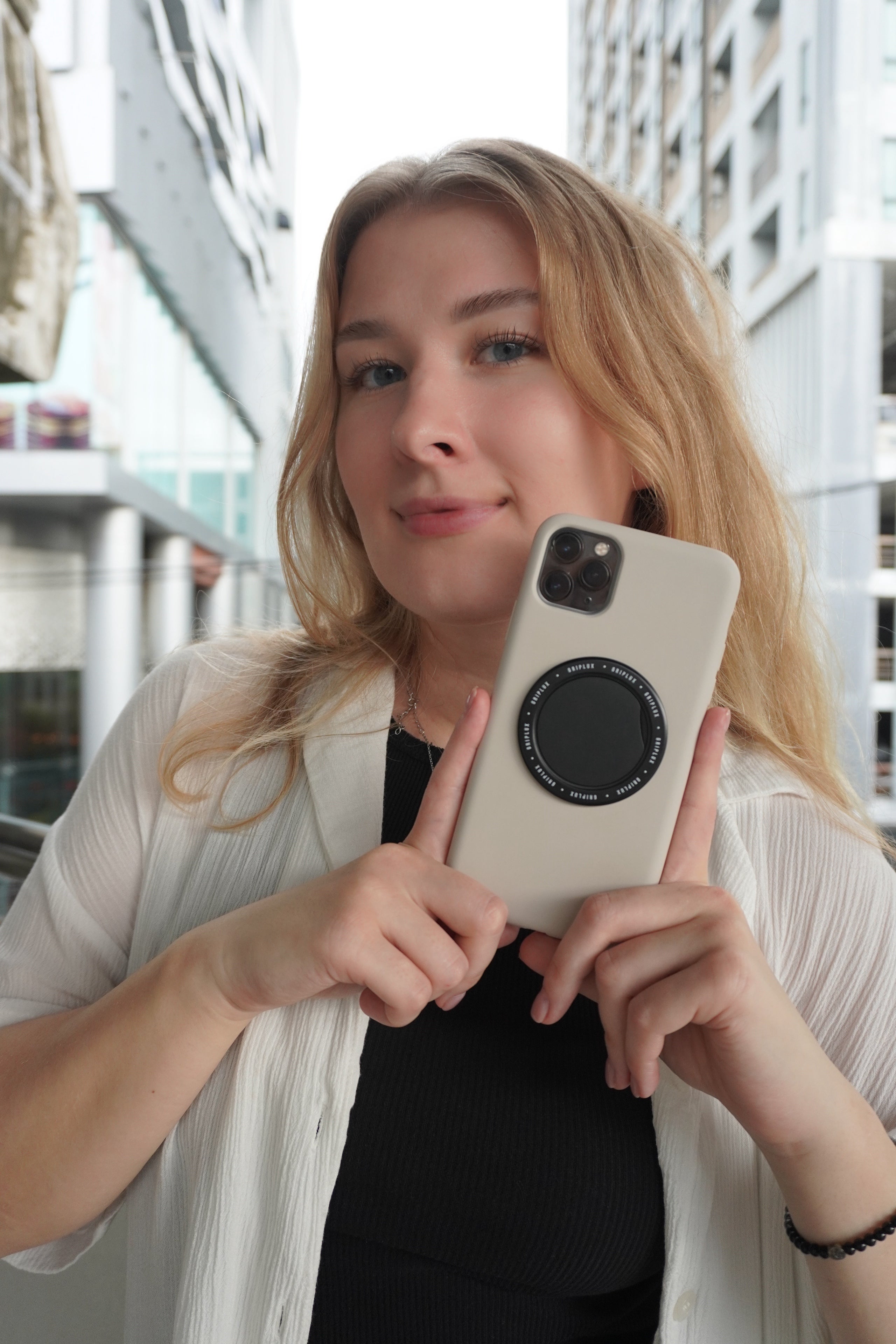
One more catch: a phone grip or wallet on the back can stop the phone sitting on a magnetic charger. A snap-on grip like the Luxi Snap Grip pulls off in a second, so take it off before you dock the phone for the night.
Questions people ask
How do I turn on StandBy on my iPhone?
Go to Settings > StandBy and switch it on. Then charge the iPhone, lock it and stand it on its side. It's on by default on iOS 17 and later, so on most phones you only need the charging and landscape part.
Does StandBy work with a cable charger?
Yes. Any charging source works: a Lightning or USB-C cable, a MagSafe charger or a regular wireless pad. The phone just has to be charging, locked and resting sideways.
Can I keep StandBy on all night?
On iPhones with an always-on display, yes, with the Always On setting. Night Mode dims it to red in the dark. Other iPhones turn the display off after a short time; tap it to bring StandBy back.
Why is my StandBy screen red?
That's Night Mode. In low light, StandBy switches to a dim red tint so it won't light up the room. Turn it off in Settings > StandBy > Night Mode if you prefer full color.
Is there StandBy on Android?
Not by that name. Many Galaxy and Pixel phones show a clock or screen saver while charging; look in Display settings. An upright stand makes those just as useful.