

On this page
01What StandBy needs from a stand
StandBy is picky about position. Get the stand wrong and the iPhone just sits there showing a normal lock screen.
- Charging: by cable, a MagSafe or magnetic charger, or a Qi pad. No power, no StandBy.
- On its side: landscape, not portrait.
- Propped up: at an upright angle. Lying flat on a pad doesn't count.
- Locked: press the side button once it's in place.
- Turned on: check Settings > StandBy. It needs iOS 17 or later.
A good StandBy stand handles three of those for you: it charges, it holds landscape, and it sets the angle. Everything else is a one-time setting.
iPhones with an Always-On display, like the 14 Pro and later Pro models, can keep StandBy visible. Other models dim it after a short while and wake it with a tap or bump. Low Power Mode also turns the screen off sooner, so switch it off at Settings > Battery if StandBy won't stay up.
02Stand types, ranked for StandBy
| Stand type | Holds landscape? | Charges? | Verdict |
|---|---|---|---|
| Magnetic charging stand | Yes, snaps on any way round | Yes, wirelessly | Best overall for iPhone 12 and later |
| 3-in-1 magnetic station | Usually, if the phone pad is raised | Phone, watch and earbuds | Best for the nightstand |
| Upright Qi cradle (non-magnetic) | Often not; the coil is set for portrait | Only when the coil lines up | Check before you buy |
| Desk stand plus cable | Yes | By cable | Best for iPhone 16e and older iPhones |
| Grip or kickstand plus cable | Yes | By cable | Fine for travel and hotels |
| Flat wireless pad | No angle | Yes | Won't trigger StandBy |
The upright Qi cradle is the trap. Many non-magnetic stands place their coil for a phone standing in portrait. Turn the phone sideways and the coils no longer overlap, so charging stops and StandBy quits. Magnetic stands don't have this problem, because the ring centers the phone over the coil at any rotation.
03Three setups that work
Magnetic 3-in-1 stand
- Snap the phone on sideways
- Everything charges overnight
- Choose one with a dimmable light
Single magnetic stand
- Small footprint
- Landscape in one motion
- Pair with a 20W+ USB-C adapter
Cradle stand plus cable
- Works without magnets
- Cable does the charging
- Cheapest route
For a deeper look at nightstand layouts and light levels, see the nightstand charging setup. Charging stands also get a full rundown in how to choose a wireless charger.
04Set up StandBy on your stand
-
Turn StandBy on
Open Settings > StandBy and switch it on. While you're there, turn on Night Mode so the display shifts to a dim red tint in a dark room.
-
Mount the phone sideways
On a magnetic stand, snap it on in landscape with the camera bump on whichever side the stand clears. On a cradle, rest it on its long edge and plug in the cable.
-
Confirm it's charging
Look for the charging bolt in the status area before you lock it. No bolt usually means the coil isn't lined up or the adapter is too weak.
-
Lock it
Press the side button. StandBy should appear within a moment.
-
Pick your view
Swipe sideways to move between widgets, photos and clocks. Swipe up or down on each to change the style. Touch and hold to edit widgets.
A magnetic stand on an old 5W cube may charge too slowly to hold a steady charge while the screen is on. A 20W or higher USB-C adapter is a sensible minimum for a 15W stand.
05Angle, height and the little details
Once the stand works, where you put it decides whether StandBy is actually useful. A clock you have to lean over to read isn't much of a clock.
- Nightstand: aim the screen at your pillow, not the ceiling. A stand that tilts the phone back slightly works better than one that holds it bolt upright on a low table.
- Desk: put it just off to the side of your monitor at roughly the same height, so a glance shows the time, a timer or your calendar widget without breaking focus.
- Kitchen: keep it away from the stove and sink. Heat slows charging, and StandBy drops out when charging stops.
- Camera bump clearance: in landscape the bump sits at one end. Check it doesn't knock against the stand's arm or a watch charger next to it.
Light matters at night too. Night Mode handles the screen, but some charging stands have bright status LEDs. Pick one with a light you can dim or turn off, or face it away from the bed.
06Stands and chargers that suit StandBy
Everything below holds an iPhone 12 or later magnetically, so landscape is just a matter of how you snap it on. On the desk, a grip that doubles as a stand works too, as long as a cable is plugged in.
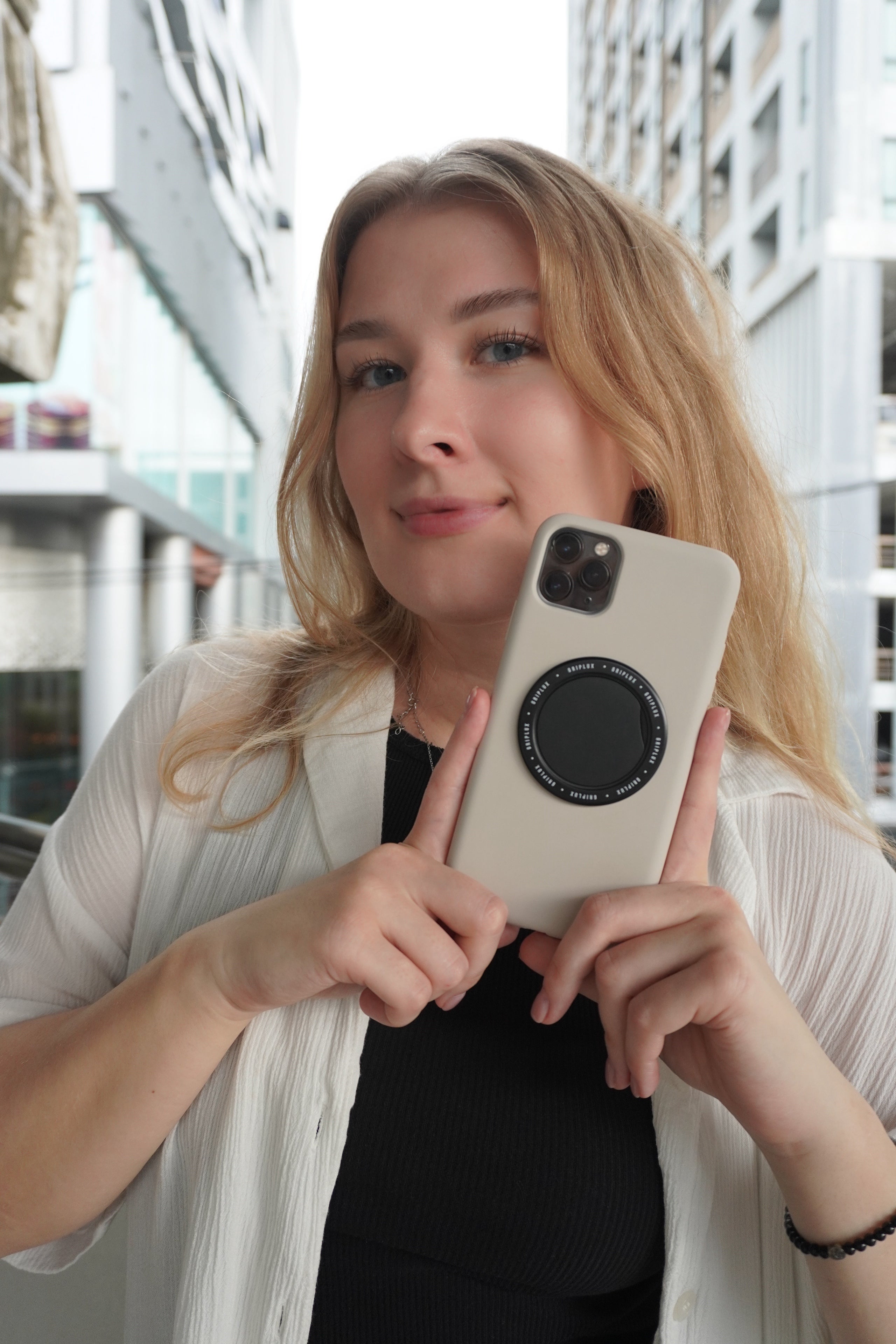
Magnetic stands for the nightstand and desk, plus a grip stand for travel.


Using a case? Make sure it's magnetic so the stand still grabs and aligns. Browse magnetic cases or check your model in Find My Phone.
Questions people ask
Does StandBy work with any charger?
It works with a cable, a MagSafe or magnetic charger, or a Qi pad, as long as the iPhone is charging, locked, on its side and propped up. A flat pad won't trigger it because the phone isn't upright.
Why won't my iPhone go into StandBy mode?
Check it's charging, locked, in landscape and at an angle, and that StandBy is on in Settings > StandBy. On a non-magnetic upright stand, turning the phone sideways can move it off the coil and stop charging.
Do I need a MagSafe stand for StandBy?
No, but it's the easiest option. Magnets hold the phone sideways and keep it aligned. Any stand that props the phone up in landscape works if a cable is charging it.
Which iPhones keep StandBy on all night?
Models with an Always-On display, such as the iPhone 14 Pro and later Pro models, can keep StandBy showing. Other iPhones turn the display off after a while and wake it when you tap the screen or bump the stand.
Does StandBy work on the iPhone 16e?
Yes, StandBy is a software feature. The 16e has no MagSafe magnets, though, so magnetic stands won't hold it. Use a cradle stand with a cable, or a magnetic case made for the 16e.