

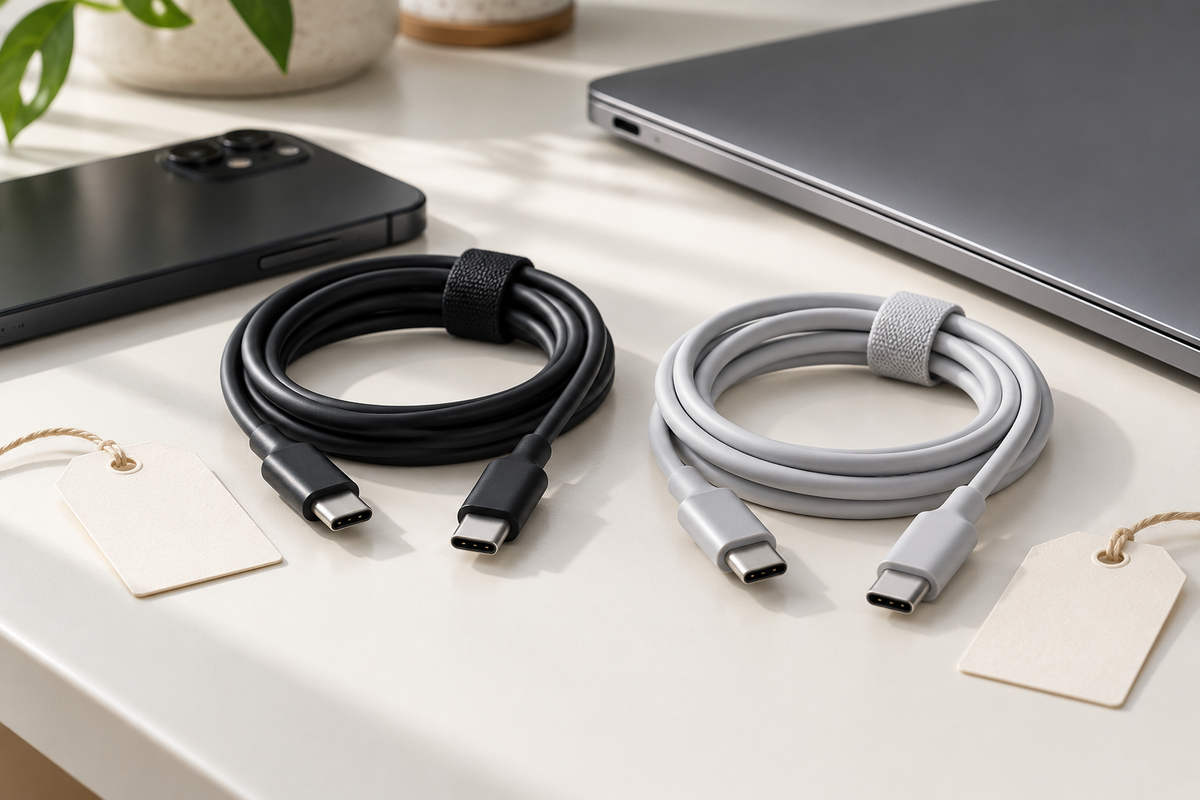
Two USB-C cables can have matching plugs and different jobs. One may suit everyday phone charging, while another is the better match for moving large files. The connector shape is the starting point; the cable's documented capabilities tell you more.
Before replacing a cable, decide what you want that connection to do. Charging a phone, charging a laptop, transferring photos and connecting a display are separate requests. Write down the task first so a prominent number on the packaging does not answer the wrong question.
Read watts as a power capability
The watt figure describes a cable's stated power capability. It is not a promise that your phone will draw that amount. The device, power adapter, cable and supported charging arrangement all need to work together.
USB-IF's certified cable power-logo announcement explains the 60W and 240W markings used in its program. Those figures help identify power capability; they do not describe how quickly a folder of photos will copy.
Start with your device manufacturer's charging guidance and the power adapter you intend to use. If you want one cable to serve a phone and a laptop, check both devices. Do not buy for the larger printed number alone, or assume that replacing only the cable will change the device's charging behavior.
Give data speed its own line
A data-rate marking answers a different question from watts. USB-IF's cable-logo requirements distinguish power markings from data-rate markings and describe an exception for High-Speed USB, or USB 2.0, cables. Read the full product specification when the cable itself does not make the data capability clear.
For a practical example, Apple's USB-C connection guide for iPhone explains that supported Pro models need an appropriate USB 3 cable to use their faster wired transfer capability. A cable that charges the phone is not automatically the cable that provides the fastest supported file-transfer connection.
Check the other end too. The computer port, hub or storage device also belongs in the comparison. Keep the intended task precise: “copy videos from this phone to this computer” is easier to match than “I need the fastest cable.”
Treat displays as a separate compatibility check
If you want to connect a monitor, look for the display requirements in the device and monitor documentation. Confirm the supported connection method, cable requirements and any necessary adapter. A high watt rating by itself does not establish display support.
Do the same for a dock with several connections. Make a list of what should work through it: charging, one display, a storage drive or another accessory. Check the dock's host-cable instructions and the computer's supported functions together, rather than judging by the presence of a USB-C socket.
This is also a reason to keep a supplied monitor or dock cable identified. If it already has a documented role, mixing it into a drawer of unmarked charging cables creates an unnecessary problem later.
Match the exact cable, including its length
Save the manufacturer, model or part number, length and specification from the listing or packaging. Similar names within one product range can describe different versions. Make sure the option in your cart is the one whose capabilities you checked.
USB-IF offers a certified-product search for products authorized to bear its logo. Match the actual product details when checking a certification claim. If the entry or identity is unclear, ask the manufacturer for the specific record instead of treating a vaguely similar listing as confirmation.
Choose a length that reaches comfortably in your setup without pulling on the connection. Check whether a right-angle connector or unusually large housing would conflict with your case, laptop edge or dock position. Electrical capability and physical fit both need to work.
Make the cable drawer easier to understand
Once you have verified a cable, give it a simple role label. “Phone charging,” “laptop charging” or “monitor cable” is more useful than relying on color. Keep a small note with the exact specifications if several cables look alike.
A reusable tie can keep a cable with its adapter when stored. Leave the manufacturer's markings readable. For an unidentified cable, record what is unknown; an ordinary charging attempt does not establish its maximum power rating or data specification.
Inspect cables according to their manufacturer's guidance and stop using damaged accessories. Do not open connectors, modify a cable or use improvised electrical tests to work out its rating.
A short comparison you can use before buying
- Task: charging, data transfer, display connection or a documented combination.
- Devices: exact models and the ports you will use.
- Power: the required supported charging arrangement and cable rating.
- Data or display: the separately stated capability needed for the task.
- Fit: cable length, connector housing and case or dock clearance.
When those answers are clear, a cable becomes easier to choose and easier to keep track of. Buy for the connection you need today, and keep its identity attached to it for the next time you reach into the drawer.
Share:
New iPhone Case? Five Fit Checks Before Everyday Use
Taking a Phone Charger Abroad? Check the Input Label Before Packing