


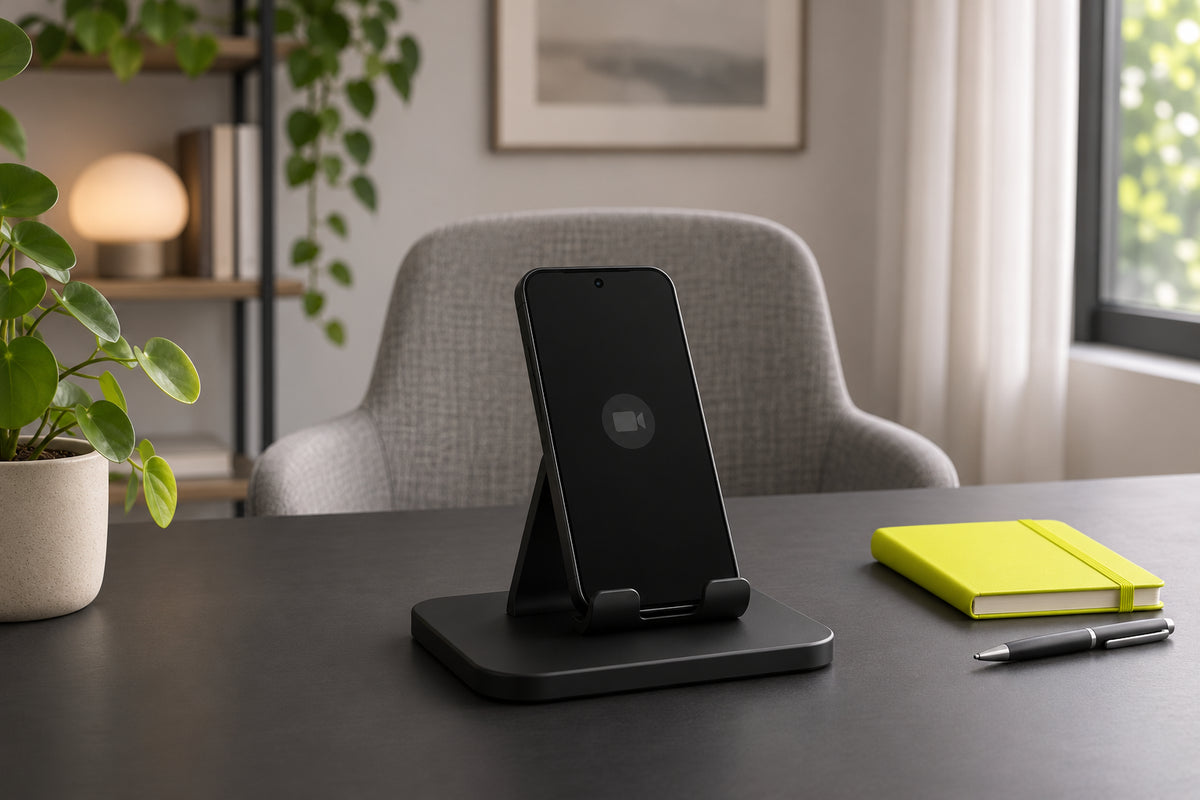
A phone can be enough for a useful video conversation, but the place you put it matters. An awkward camera angle, a bright window behind you or a charging cable pulled tight across the desk can make a simple call feel unnecessarily distracting. Before buying more equipment, rehearse the setup you already have.
The aim is a comfortable, repeatable corner where you can see the screen, be heard and keep private information out of view. These are practical staging suggestions, not a promise that a particular accessory or app will improve your connection.
Choose the seat before placing the phone
Sit where you expect to spend the call. Put your notes, keyboard or other materials within reach, then decide where the screen can go without forcing you to turn sideways throughout the conversation. A location that looks tidy when you are standing may feel cramped once you sit down.
Use a stable surface and a support intended for your phone. Avoid balancing the device against a mug, a loose stack of objects or something you will need to pick up during the call. Keep it away from the desk edge and from places where another person or pet could knock it.
If you already own a grip with a stand function, check its instructions and test your particular phone-and-case combination. The Luxi Snap Grip product page describes its grip and stand functions. That is a starting point for checking compatibility, not a guarantee that every case, angle or desk arrangement will work.
Frame the actual conversation
Open the preview in the app you plan to use, when available. Sit naturally rather than leaning forward to make the framing work. Adjust the support position so your face is comfortably visible and you can glance at the screen without continually moving the phone.
Check the framing again if you turn the device between portrait and landscape. The angle that works for a solo conversation may not fit two people sharing a screen. Test the arrangement with everyone seated before the important call begins.
Leave enough room for ordinary movements. If you expect to demonstrate a small object, place it nearby and try bringing it into view. Do not assume that something readable to you at the desk will be readable to the person watching a small video window.
Move yourself before buying a light
Look at your face in the preview. Try facing toward a window or placing the window slightly to one side, then compare the result with the window behind you. Choose the position that looks clearer in your actual room rather than relying on a fixed rule about distance or brightness.
Watch for glare on glasses and for a lamp that is uncomfortable to look toward. Small changes in your seat, the phone angle or the light position may be enough. Keep any lamp and its cord in a normal, stable location; do not build a precarious lighting arrangement for one meeting.
Room conditions change during the day. A spot that looked good in the morning deserves another glance before an afternoon call, particularly when direct sunlight moves across the desk.
Check the whole background
Inspect the edges of the preview as well as the center. Papers, parcel labels, calendars and reflective surfaces can reveal information you did not intend to share. Move private items out of the camera's view before joining.
A simple background is usually easier to manage than an elaborate staged one. You do not need an empty room. Choose a view you are comfortable showing and make sure someone walking past will not be unexpectedly on camera.
If you use a background effect, check it in the actual app. Do not rely on a blur effect as the only protection for sensitive material. Keep the physical space appropriate even if the effect changes or stops working.
Rehearse sound and everyday movements
Use the app's available test or preview tools, or arrange a short test with a willing participant. Check that the intended microphone and speaker or headphones are selected. Menu names differ between apps, so consult the app's current help rather than assuming every service uses the same controls.
During the test, reach for your notes and gently use the controls you will need. Notice whether you bump the stand, brush the microphone or pull a cable. Route cables with enough slack for the intended position, without creating a trip hazard.
Check your battery level before the call. If charging is needed, follow the device and charger's instructions and confirm the cable fits comfortably with the stand in use. For a broader desk arrangement, our iPhone desk setup guide covers a related planning task.
Keep a short reset routine
Before joining, check the invitation, sound selection, camera preview and notes. Know how to mute and end the call in the app you are using. A quick review is more useful than rearranging the whole desk at the last moment.
Afterward, note one change that would help next time. Keep the support in a repeatable position if the space allows, return accessories to their usual place and clear private papers. The best call corner is one you can prepare calmly with a few familiar checks.
Cover: conceptual video-call desk arrangement, not a specific GripLux stand or app screenshot.


Turn a Vague Errand List into Clear iPhone Reminders
Keep a Useful Purchase Record for Your Phone Accessories