

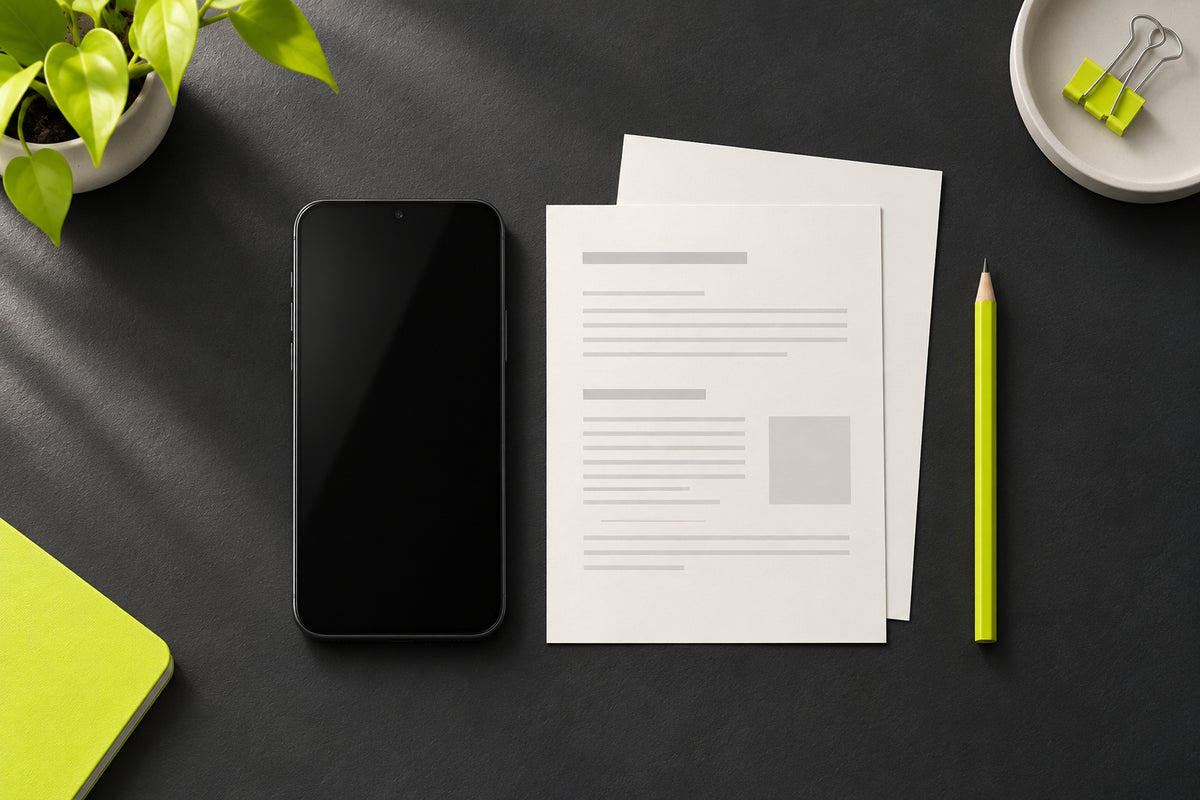
A document scan can look acceptable as a small thumbnail and still contain a clipped date, a shadow across a signature line or an unreadable reference number. The most useful improvement often happens before you tap the capture button: flatten the page, clear the background and give yourself a comfortable way to hold the phone.
You do not need to turn a quick receipt scan into a photography project. Use the following routine when you want a readable copy, then check the result at a size that reveals the details someone will actually need.
Prepare the page, not just the phone
Put the document on a stable, uncluttered surface. Choose a background that makes the page edges easy to distinguish. A white sheet on a pale, patterned table can be harder to frame than the same sheet against a plain darker surface.
Remove unrelated papers from view, especially anything containing information you do not intend to capture. Smooth ordinary folds gently without altering or damaging the original. If a booklet will not lie flat without force, support it comfortably and accept that you may need to capture and review its pages individually.
Move the light before adding more light
Look at the page through the camera preview. If your phone or body casts a shadow over the text, change your position or the position of the page. A light directly behind you may create the very shadow you are trying to avoid. With glossy paper, try another angle until the bright reflection moves away from the information.
Do a short test before scanning a whole stack. A brighter preview does not automatically mean a better scan. The test is whether light and dark portions of the page retain the details you need, including faint handwriting and small printed numbers.
Use the built-in document capture
Apple's current document-scanning instructions describe opening a note in Notes, choosing the Attachment button and then Scan Documents. Frame the page. Auto mode captures it automatically; for manual capture, use the shutter or a volume button. Adjust the corners if needed, keep the scan, and add more pages or finish. Controls can differ with software version, so use Apple's guide if your screen looks different.
Apple also documents a scanning route in Files through its More menu. Choose the route that suits where you want to keep the finished document. You do not need a new scanning subscription merely to try these built-in options.
Keep the camera comfortably over the page
Hold the phone so the whole page fits with some surrounding space. Try to keep the camera facing the paper rather than viewing it at a steep angle. Automatic corner correction can be helpful, but it does not replace a clear capture of the original text.
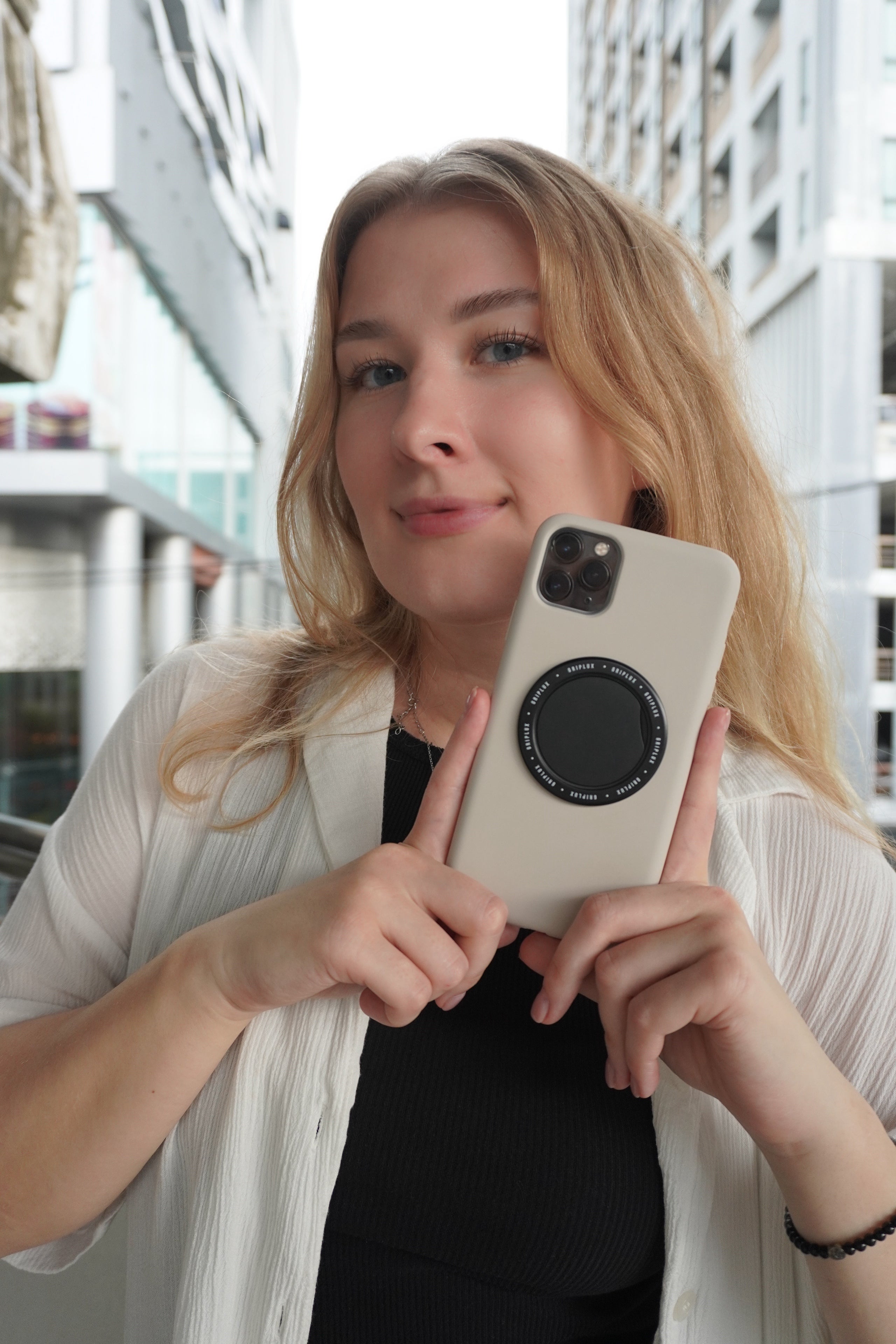
If you use a grip, check that it gives you a comfortable hold without blocking the camera. A kickstand intended for watching a screen is not automatically an overhead scanning mount. Do not balance the phone precariously on a box or suspend it over a page with an accessory that was not designed for that position.
Review the difficult details first
Open the captured page and zoom in. Check all four corners, the first and last lines, the smallest text, and any handwritten notes. Look specifically for characters that could be confused: a clipped zero, a faint decimal point or a folded edge across a date can matter more than the overall appearance.
For a multipage document, count the pages and check their order. Make sure you have not captured one page twice while missing another. Rotate any sideways pages using the available document controls. Rescan a poor page now, while the original is still in front of you, rather than trying to guess what it said later.
Name and locate the finished copy
Choose a name you will recognize outside the current task, such as the subject and document date. Avoid putting unnecessary private information in a filename. Reopen the saved copy from its destination rather than relying only on the capture preview. That confirms you can find the version you intend to use.
Before sharing, check the recipient, the selected pages and any account or sync settings relevant to that destination. Scanning a document does not itself authorize sending it. Keep the original when retention requirements, the recipient or the nature of the document call for it; a digital copy is not automatically a substitute for an original.
Our phone accessories can support different everyday setups, but a useful scan starts with the page and a deliberate review. A readable, complete document is the goal, not an elaborate rig.


Set Up a Hands-Free iPhone Group Photo Before Starting the Timer
Make iPhone Text Easier to Read: Text Size, Bold Text and Display Zoom