

A soft-looking photo does not immediately tell you that a phone case is faulty or a camera needs replacing. A fingerprint, an accessory overlapping the camera, the scene itself or a device problem can all lead you toward different next steps. The useful first move is to separate what you can observe from what you have not established.
This is a short, non-invasive check for an iPhone you already own. It is not a camera repair procedure or a laboratory test of a case. Work at a clear table, keep the phone supported and stop if removing an accessory would require force or uncertain tools.
Describe the photo problem before changing the setup
Choose one ordinary example that shows the concern. Is the whole image soft, is one corner obscured, or is there an unexpected reflection? Does it happen in the Camera app, a different app, or both? Write that down without naming a failed component.
Keep the comparison simple. Use a stationary subject in consistent light and take the next photo from roughly the same place. Do not compare a bright outdoor scene with a dark indoor shot and attribute every difference to the accessory. This is an observation exercise, not proof of what caused the original problem.
If the phone has visible damage, moisture inside a lens area or a persistent warning, use the manufacturer's support route. Do not press on the camera, pry off a lens assembly or open the phone to investigate.
Look for an obstruction in the complete accessory stack
Inspect the camera and flash area in good light. A case, separate camera protector, clip-on lens and magnetic attachment are different pieces, even when they were bought together. Note what is fitted and whether anything visibly crosses an opening.
Apple's camera troubleshooting guidance recommends removing cases, films or accessories that could obstruct the camera or flash, or position a magnet near the camera. It also recommends a microfiber cloth for blurry-photo lens cleaning, followed by further device troubleshooting if needed.
Follow the accessory maker's removal instructions. A case designed to flex off is not the same as an adhered lens protector. Do not turn this check into scraping, cutting or solvent use. If removal is unclear, ask the accessory supplier how to proceed.
Keep the cleaning step modest
Use a clean microfiber cloth on the external camera lenses as Apple directs. Make sure you are working on the phone's accessible exterior, not trying to get beneath a protective cover or inside an opening. Follow the current cleaning guidance for your particular device if more than a light wipe is needed.
Keep case care separate. A cleaner suitable for one case material is not automatically suitable for the phone, its lens surfaces or another accessory. Avoid improvising a stronger cleaning treatment because the first photo still looks soft. A persistent symptom is information for support, not a reason to escalate to abrasive tools.
Make one comparison you can explain
After an approved removal and gentle lens wipe, take another photo of the same stationary subject. Record the arrangement: case off, detachable accessory off, front or rear camera, and whether the issue remains. If you change several things at once, say so; you cannot then identify which change made the difference.
An improvement without the accessory suggests a useful direction for checking fit or compatibility. It does not prove that every example of that case is defective. Likewise, no improvement does not prove that the camera hardware has failed. Follow Apple's next troubleshooting steps, including restarting, updating and testing the camera, rather than buying replacements on that result alone.
Do not treat magnetic attachment as a camera test
A magnetic accessory can attach neatly while still needing a compatibility check for its particular position and use. Avoid adding extra magnets or moving a mount close to the camera to reproduce a problem. The useful question for the supplier is which phone, case and accessory combination the documentation covers.
For a newly received case, our five everyday fit checks cover seating, controls, cables and other accessories. Those checks complement this camera-focused comparison; neither establishes impact protection or a universal performance rating.
Send a useful description if you need help
- Exact iPhone model and current software version.
- Names and selected variants of the case and any camera-area accessories.
- A brief description of the problem and when it began.
- What was removed or cleaned, and whether the symptom changed.
- A non-sensitive example photo, if the support provider requests one.
Do not include private photo-library contents or account credentials. If the camera or flash still does not work properly, follow Apple's service guidance. A careful description is more useful than an unsupported verdict—and may prevent replacing an accessory that was never the cause.
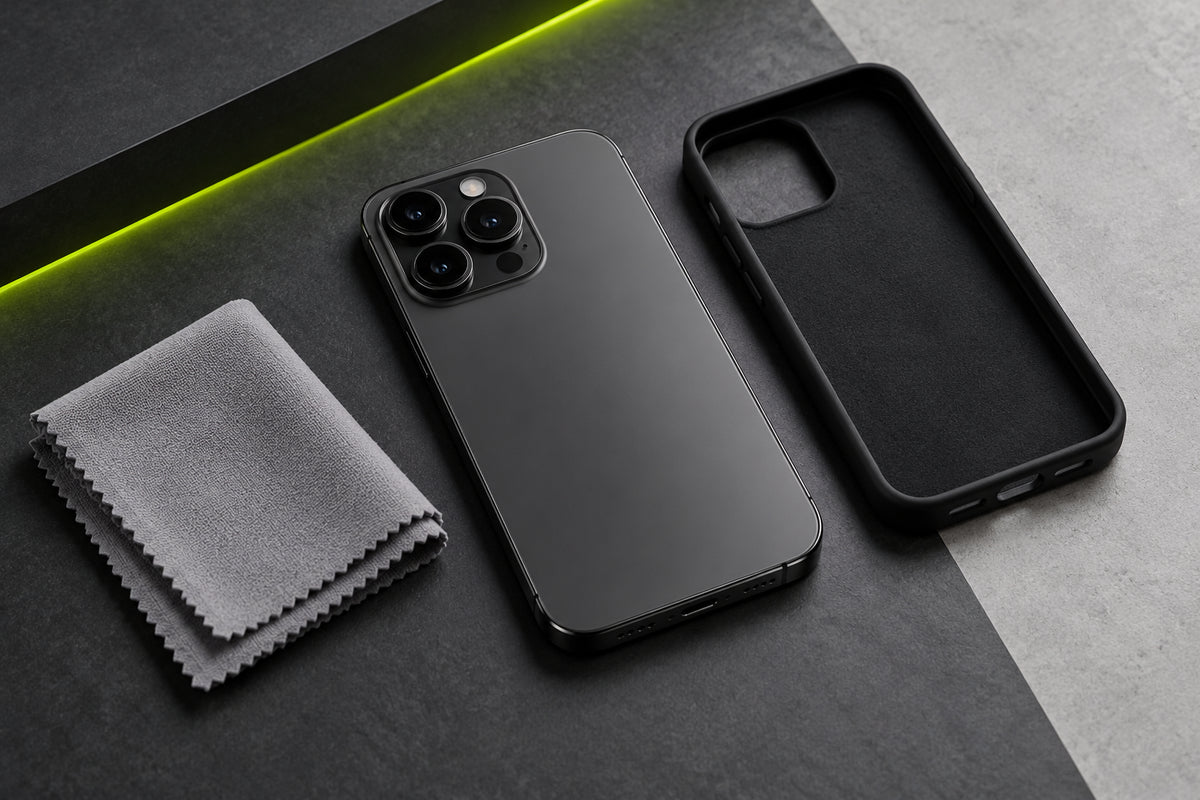
Cover: original conceptual illustration of a phone, separate case and microfiber cloth; not a product test or compatibility certification.


Buying a Phone Case as a Gift: Confirm the Model Before the Color
Make a Charging Landing Spot for Your Phone and Detachable Accessories